Find and Remove Duplicate Files Fast
Czkawka scans your drives for duplicate files, similar images, empty folders, and broken files. Built in Rust for speed, free forever.
What Is Czkawka?
A multi-purpose disk cleanup tool built in Rust that finds and removes duplicate files, empty folders, similar images, and more.
Disk Cleanup Without the Bloat
Czkawka (pronounced “chkafka” – Polish for “hiccup”) is a free, open-source application that scans your computer for unnecessary files taking up disk space. It does one job well: finding duplicates, empty directories, broken files, and similar media so you can reclaim storage without guesswork.
The project is maintained by developer qarmin on GitHub and released under the MIT license. Unlike commercial alternatives such as Duplicate Cleaner or AllDup, Czkawka runs on Windows, Linux, and macOS with no ads and no telemetry. The current release, version 11.0.1, ships with two separate GUI frontends: the mature GTK4-based interface and Krokiet, a newer Slint-based UI with runtime theme switching.
Built for Speed
Written entirely in Rust, Czkawka processes large file collections faster than most alternatives in its category. Users in the r/DataHoarder and r/linux communities regularly note that it outperforms Python-based tools like dupeGuru when scanning hundreds of thousands of files. The app uses hash-based comparison for duplicates and perceptual hashing for image similarity, which keeps results accurate while staying fast.
Beyond duplicate detection, Czkawka includes ten distinct scanning modes: duplicate files (by name, size, or hash), empty folders, similar images, similar videos, broken files, bad file extensions, empty files, temporary files, invalid symbolic links, and similar music. Most alternatives handle only one or two of these tasks. Tools like rmlint focus purely on duplicates, and FSlint (now discontinued) covered a narrower set of checks. Czkawka handles all ten in one binary.
What Czkawka Can Do
Ten built-in tools for finding and removing the files you forgot about. Each tool targets a specific type of clutter that builds up over time.
Duplicate File Finder
Compares files by name, size, or full hash to find exact copies. Handles millions of files without choking, thanks to Rust’s memory-safe multithreading. You pick which copy to keep.
Similar Image Finder
Uses perceptual hashing to detect images that look alike but have different file names or resolutions. Catches resized copies, re-saved JPEGs, and near-identical photos from burst mode.
Empty Folder Finder
Walks your directory tree and flags folders with nothing in them. After deleting old project folders or uninstalling apps, these empty shells pile up fast.
Similar Video Finder
Compares video files frame-by-frame to spot duplicates even when the file format or bitrate differs. Useful for cleaning up video libraries with multiple exports of the same footage.
Broken File Detector
Scans files and checks if their contents match the expected format. Catches corrupted downloads, partially transferred files, and archives that refuse to open.
Bad Extension Finder
Detects files whose extension does not match the actual content type. A .jpg that is really a .png, or a .txt that is actually a binary. Fixes misnamed files before they cause problems.
Similar Music Finder
Compares audio files by their metadata tags to find songs saved under different names or in different formats. Cleans up music collections where the same track exists as MP3, FLAC, and OGG.
Empty and Temporary File Finder
Locates zero-byte files and leftover temp files that apps create and forget about. Targets common temp patterns across operating systems without needing manual search.
Invalid Symlink Finder
Identifies symbolic links that point to files or directories that no longer exist. Mostly relevant on Linux and macOS systems where symlinks are part of the daily workflow.
Rust-Powered Performance
Written entirely in Rust with zero unsafe code. Scans run in parallel across CPU cores with minimal memory overhead. Users on Reddit regularly report scanning 100K+ files in under a minute.
All tools are available through both the GTK4 GUI and the command-line interface. Download Czkawka to get started.
System Requirements
Czkawka is lightweight and runs on modest hardware. Built in Rust, it stays fast even when scanning millions of files.
| Component | Minimum | Recommended |
|---|---|---|
| Operating System | Windows 10 (64-bit) | Windows 10/11 (64-bit) |
| Linux | Ubuntu 20.04 / GTK4-compatible distro | Ubuntu 22.04+ / Fedora 38+ / Flatpak |
| macOS | macOS 10.15 Catalina | macOS 12 Monterey or newer |
| Processor | Any x86_64 dual-core CPU | Quad-core (Intel i5 / Ryzen 5 or better) |
| RAM | 512 MB available | 2 GB or more for large scans |
| Disk Space | 100 MB for installation | 200 MB (including cache files) |
| Display | 1024 x 768 | 1920 x 1080 for comfortable use |
| Dependencies (Linux) | GTK4, libheif, libraw | GTK4, libheif, libraw, ffmpeg (for video scanning) |
Czkawka v11.0.1 ships as a portable app on Windows – no installer needed, just extract and run. On Linux, Flatpak is the easiest install method. The CLI version works without a graphical environment and is suitable for headless servers.
Download Czkawka
Version 11.0.1 · Released February 2026 · Free and open source under the MIT license.
Windows
Windows 10 or later · 57 MB
Download CzkawkaGTK4 GUI comes as a .zip archive. Extract and run. No installer needed.
Linux
Ubuntu 20.04+ / x86_64 · Binary
Download CzkawkaRequires GTK4 libs (libgtk-4). Flatpak bundles all dependencies.
macOS
macOS 10.15+ · Apple Silicon & Intel
Download CzkawkaGatekeeper may block unsigned apps. Right-click and select Open the first time.
All downloads come directly from the official GitHub releases page.
Screenshots
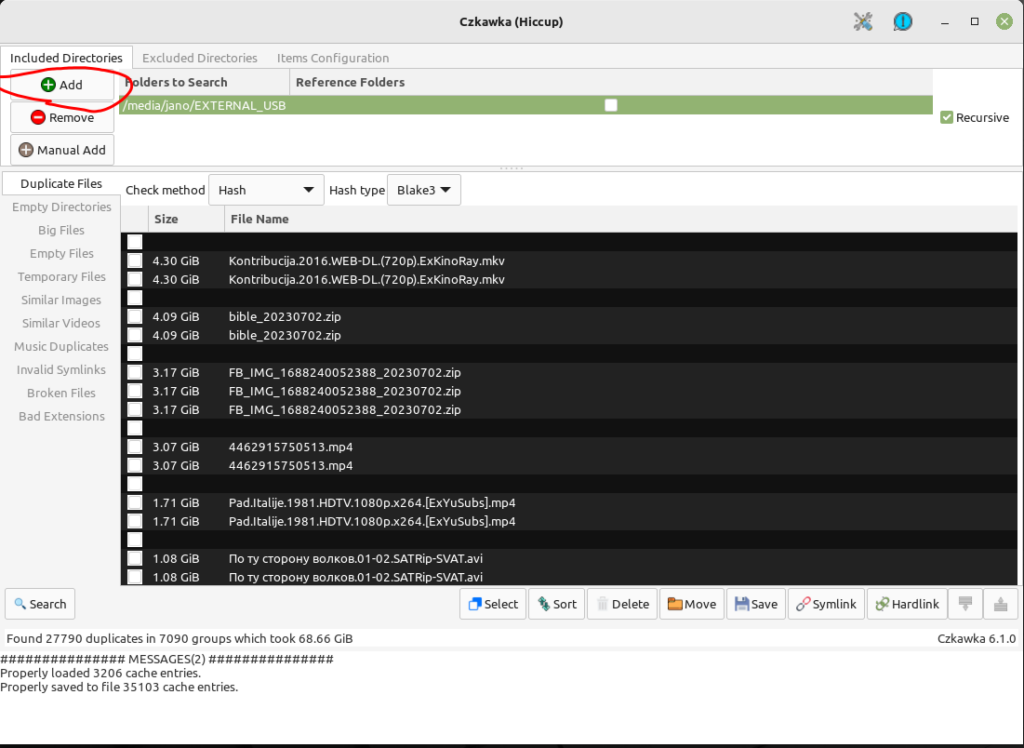
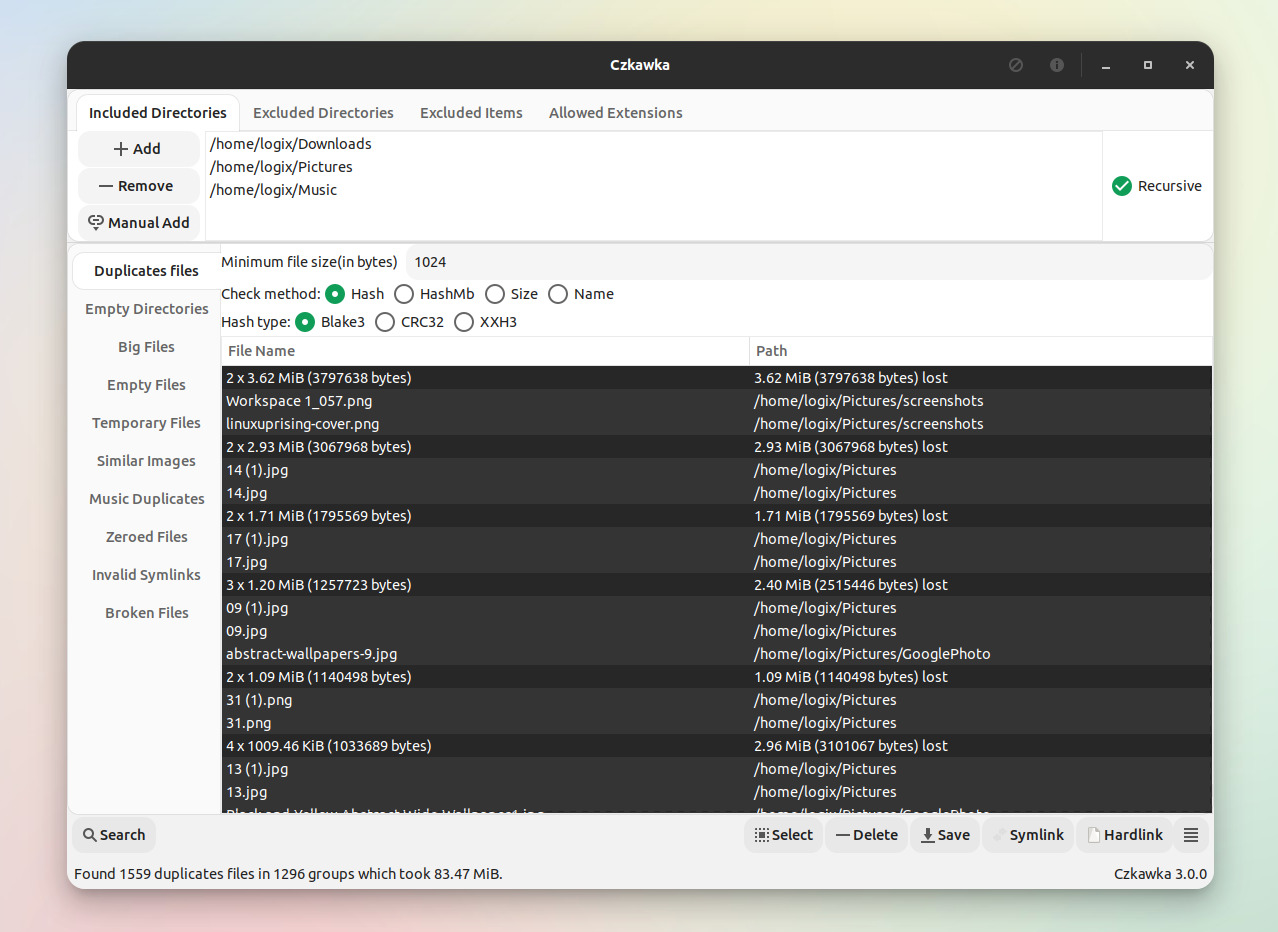
See Czkawka in action across different platforms and scan modes before downloading.
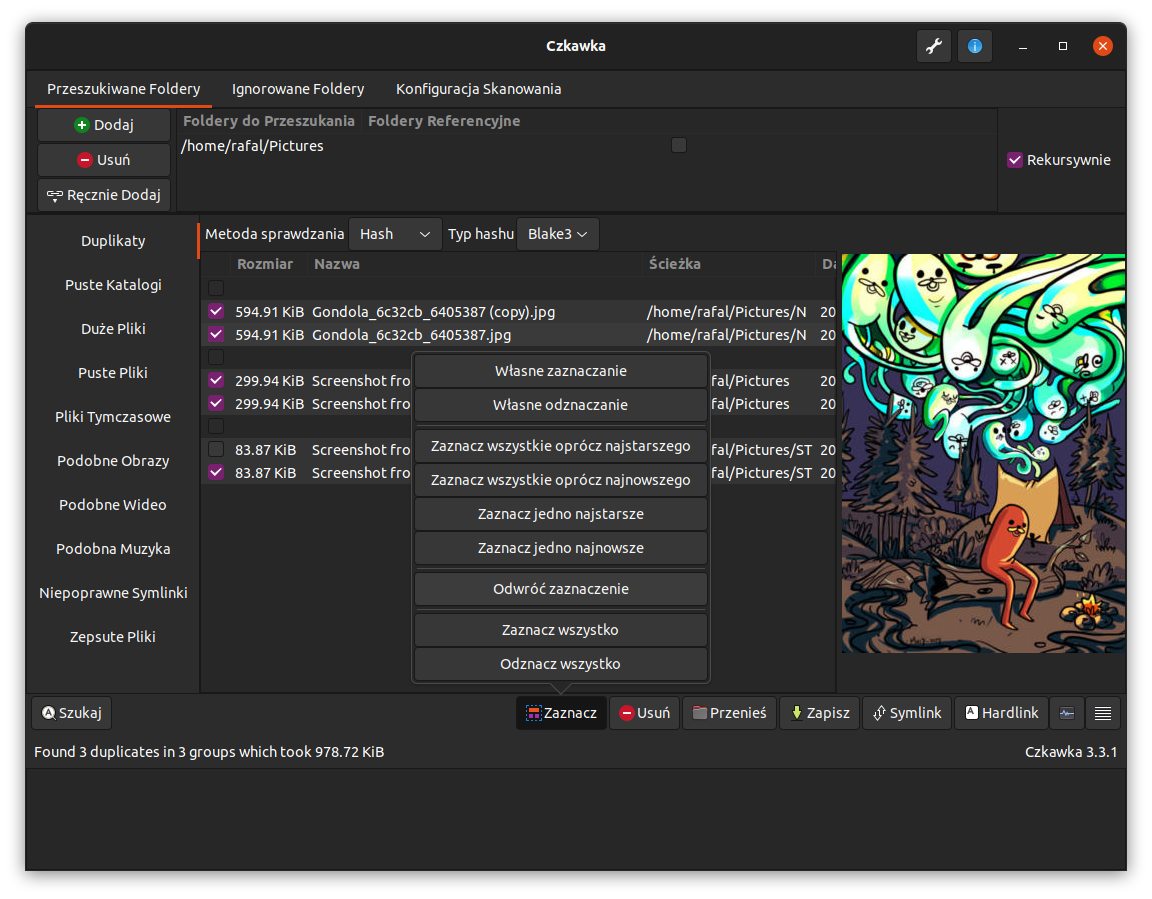
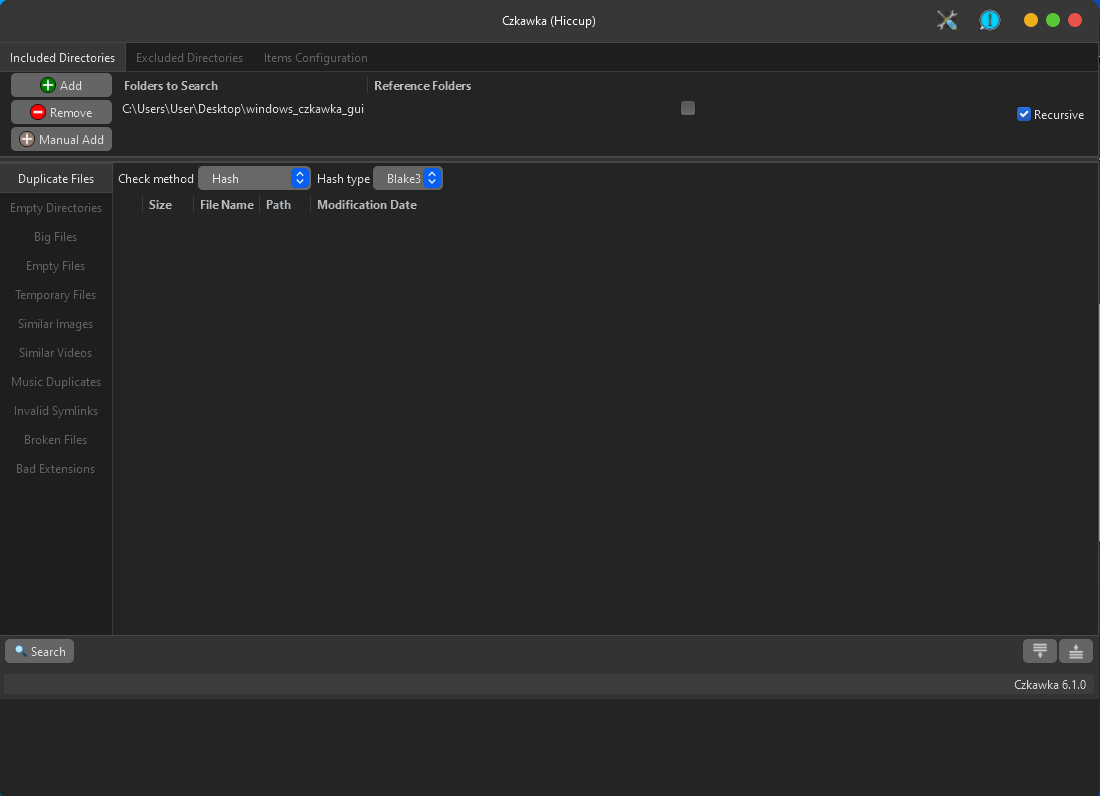
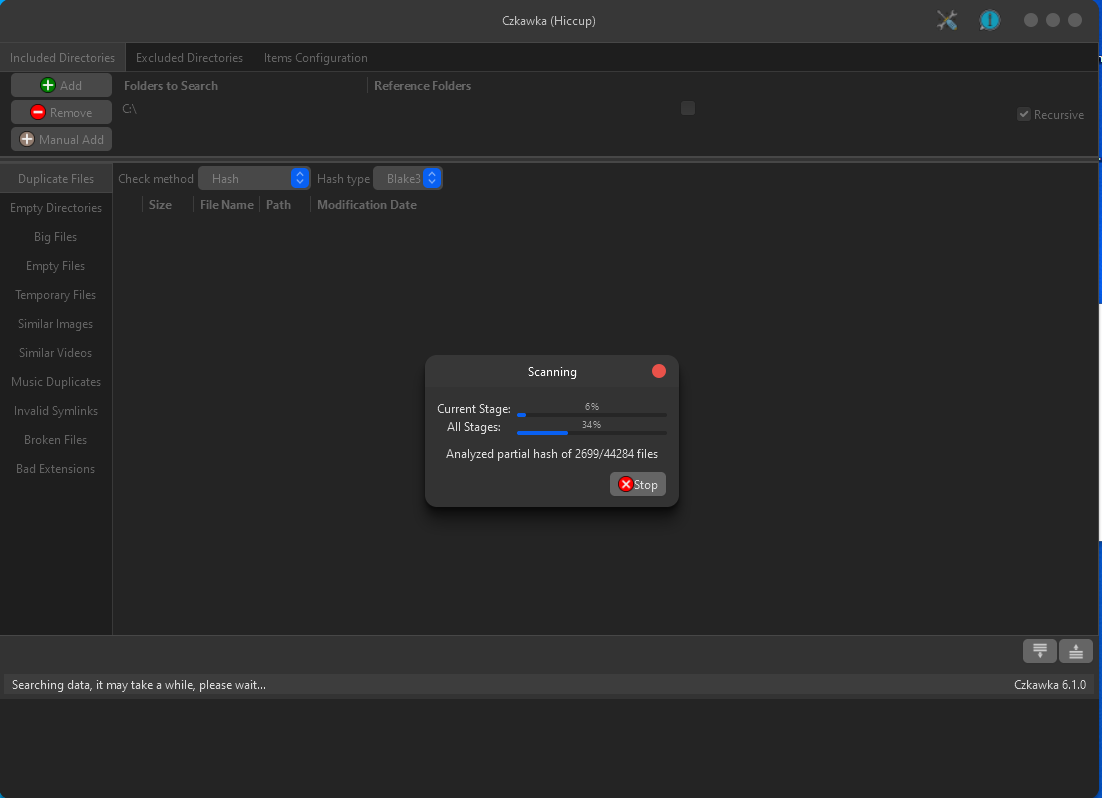
Want to try Czkawka yourself? Download the latest version for your platform.
Getting Started with Czkawka
From download to your first duplicate scan in under five minutes. Here is everything you need to know to start cleaning up your drives.
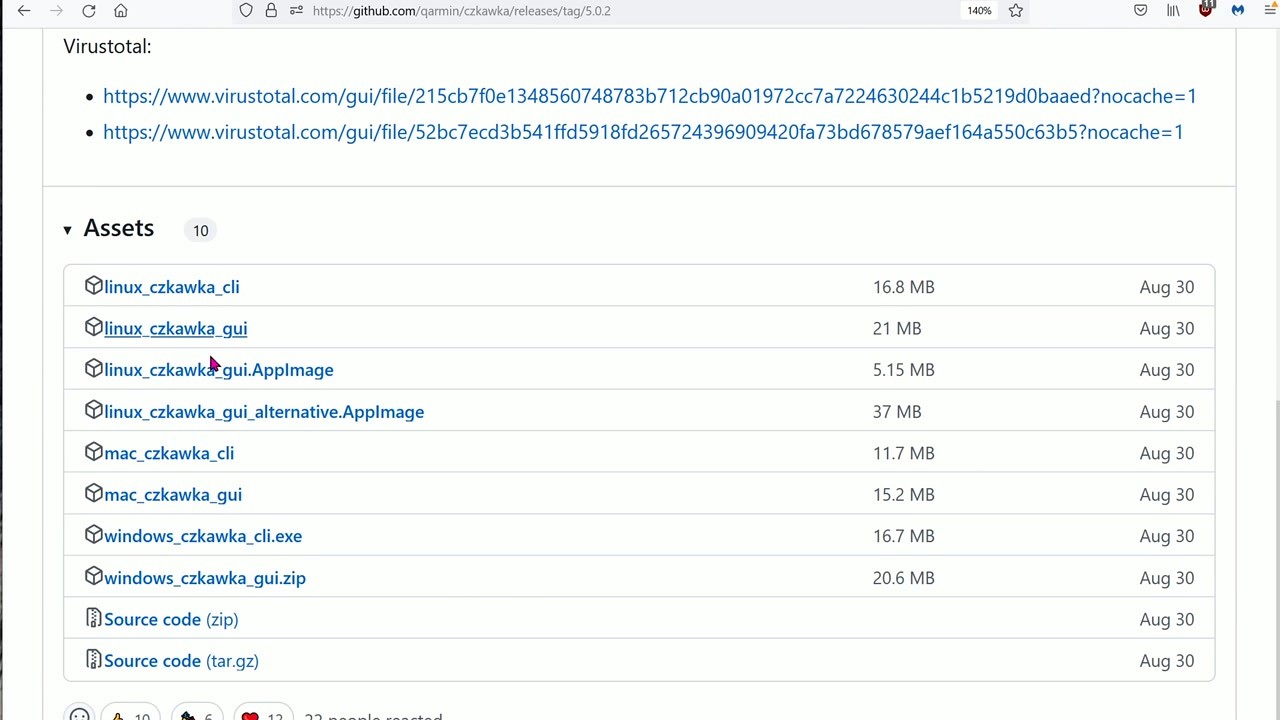
Head to our download section above to grab the latest release. Czkawka ships as a portable application for Windows, so there is no installer to run. You will download a single ZIP file (around 57 MB for the GTK GUI version) or a standalone EXE (around 52 MB for the newer Krokiet GUI).
Which version should you pick?
- Czkawka GTK (ZIP) – The classic, well-tested GUI built on GTK4. Recommended for most users. Extract the ZIP and run the EXE inside.
- Krokiet (EXE) – A newer frontend using the Slint toolkit. Offers runtime dark/light theme switching and a more modern look. Single executable, no extraction needed.
- Czkawka CLI (EXE) – Command-line only. Best for automation, scripting, or running on headless servers.
If you are new to Czkawka, go with the GTK GUI ZIP. It is the most documented version and handles all ten scan types through a familiar tabbed interface. The download should take under a minute on most connections.
Linux users can skip the ZIP entirely. Install via Flatpak (flatpak install flathub com.github.qarmin.czkawka) or grab the AppImage from the releases page. macOS users can install through MacPorts with sudo port install czkawka.
Czkawka does not use a traditional installer. It is fully portable, meaning you extract files to a folder and run the program directly. No registry entries, no system modifications, no uninstall process needed later.
Windows (GTK GUI)
- Locate the downloaded windows_czkawka_gui_gtk_412.zip file in your Downloads folder.
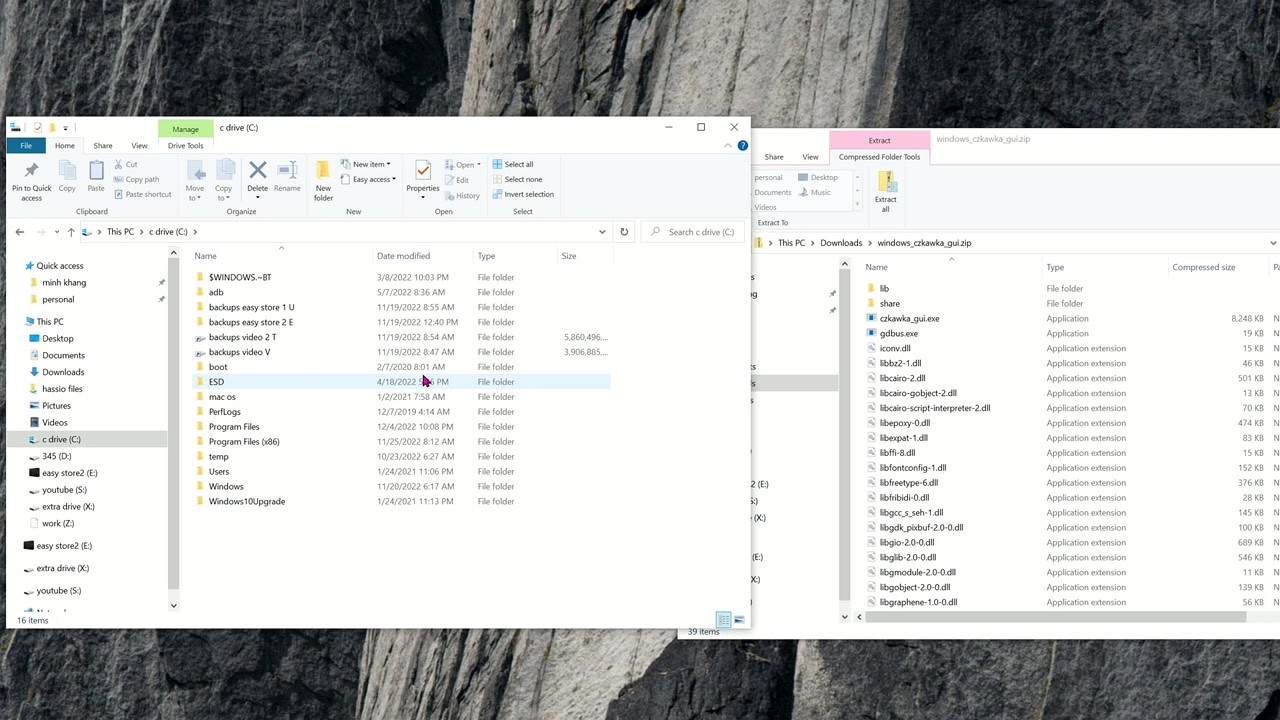
- Right-click the ZIP and select Extract All. Choose a permanent location like C:Program FilesCzkawka or a folder on your desktop.
- Open the extracted folder. You will see czkawka_gui.exe alongside several DLL files (GTK libraries). Do not delete these DLLs – the app needs them to run.
- Double-click czkawka_gui.exe to launch.
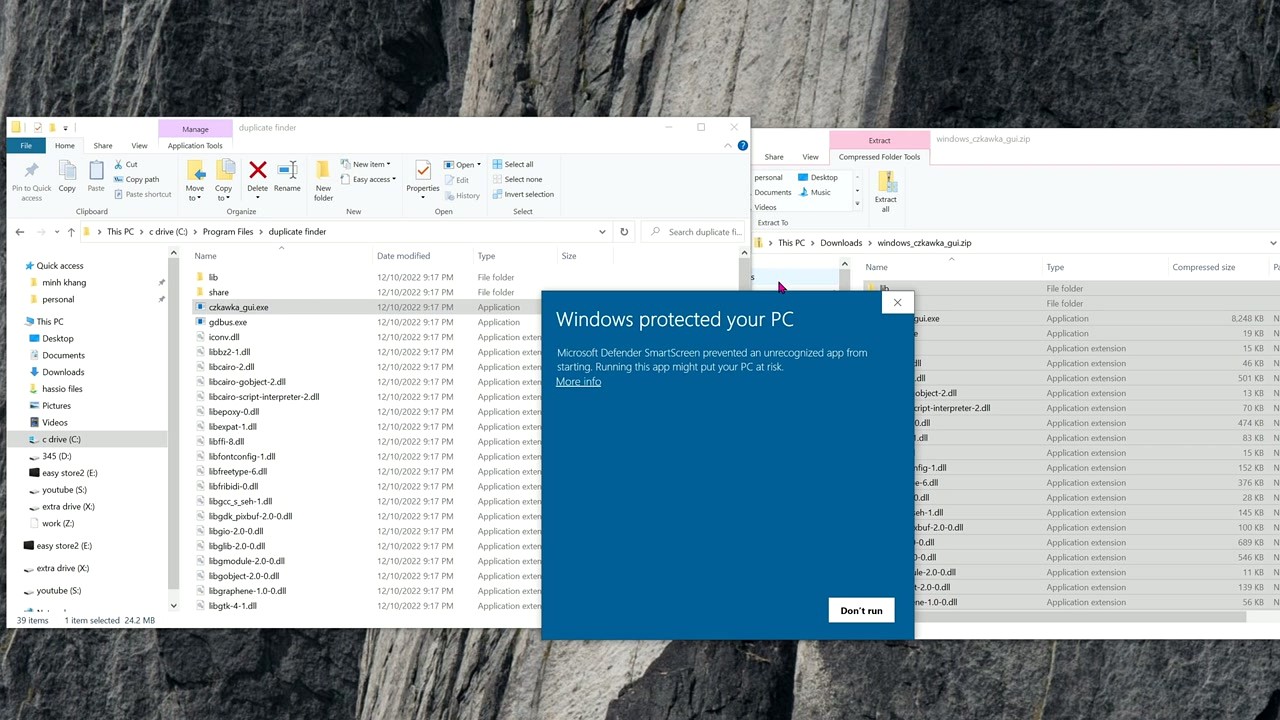
Windows SmartScreen may block the first launch. Since Czkawka is an open-source app without a paid code-signing certificate, Windows flags it as unrecognized. Click “More info” in the SmartScreen popup, then click “Run anyway”. The app is safe – it is MIT-licensed and the source code is fully auditable on GitHub.
Windows (Krokiet GUI)
Even simpler. The Krokiet version is a single windows_krokiet_on_windows_skia_opengl.exe file. No extraction needed. Just download the EXE, place it wherever you like, and double-click to run. The same SmartScreen warning applies on first launch.
Linux
The fastest route is Flatpak:
flatpak run com.github.qarmin.czkawka
For the AppImage version, download it from the releases page, then make it executable and run:
./linux_czkawka_gui.AppImage
Ubuntu/Debian users can also try the PPA: sudo add-apt-repository ppa:xtradeb/apps && sudo apt install czkawka
macOS
Download the ARM binary (Apple Silicon) or Intel binary from the releases page. Open Terminal, navigate to the download folder, and run:
./mac_czkawka_gui_arm
macOS will ask for permission – go to System Settings > Privacy & Security and click “Allow Anyway” next to the Czkawka entry. You only need to do this once.
When Czkawka opens for the first time, it loads with sensible defaults. There is no registration, no account creation, and no first-run wizard. The app is ready to scan right away. But a few settings are worth adjusting before your first big scan.
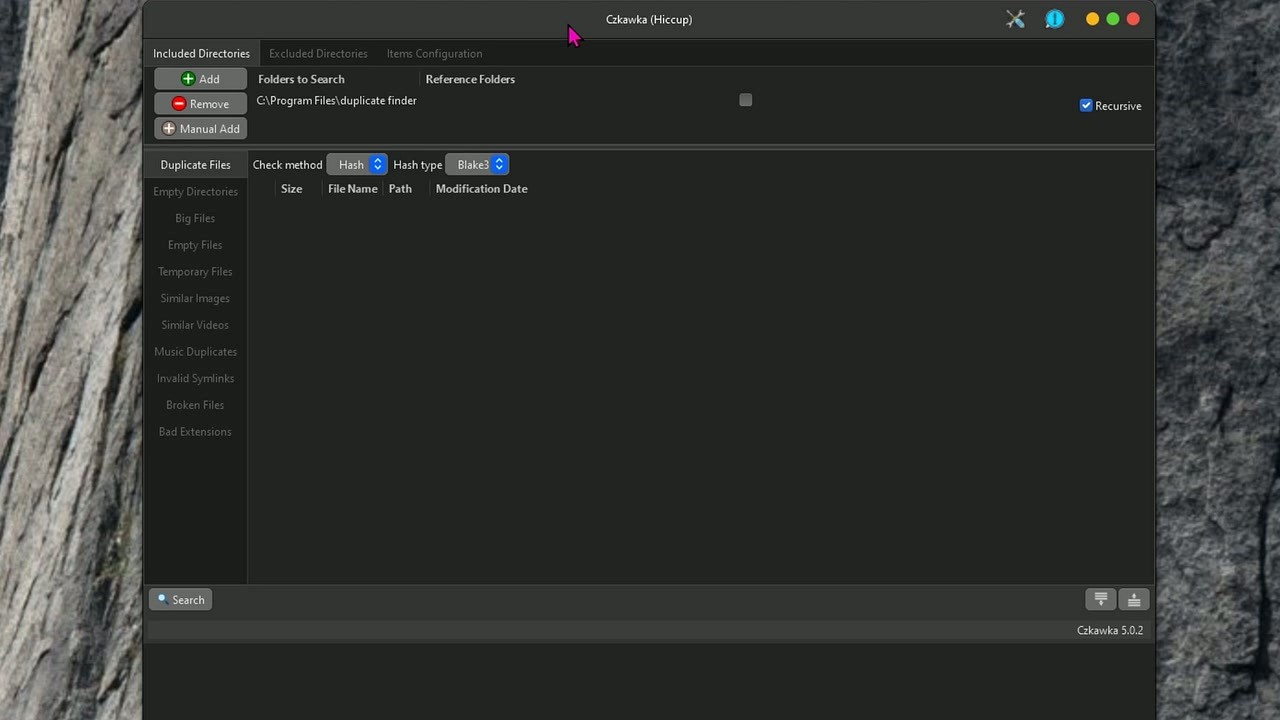
The main window is split into clear sections. On the left, you will see the scan mode tabs: Duplicate Files, Empty Directories, Big Files, Empty Files, Temporary Files, Similar Images, Similar Videos, Music Duplicates, Invalid Symlinks, Broken Files, and Bad Extensions. The top area shows the directory configuration tabs: Included Directories, Excluded Directories, and Items Configuration.
Settings worth changing
Click the settings button (gear icon in the bottom-right corner) to open the Settings panel:
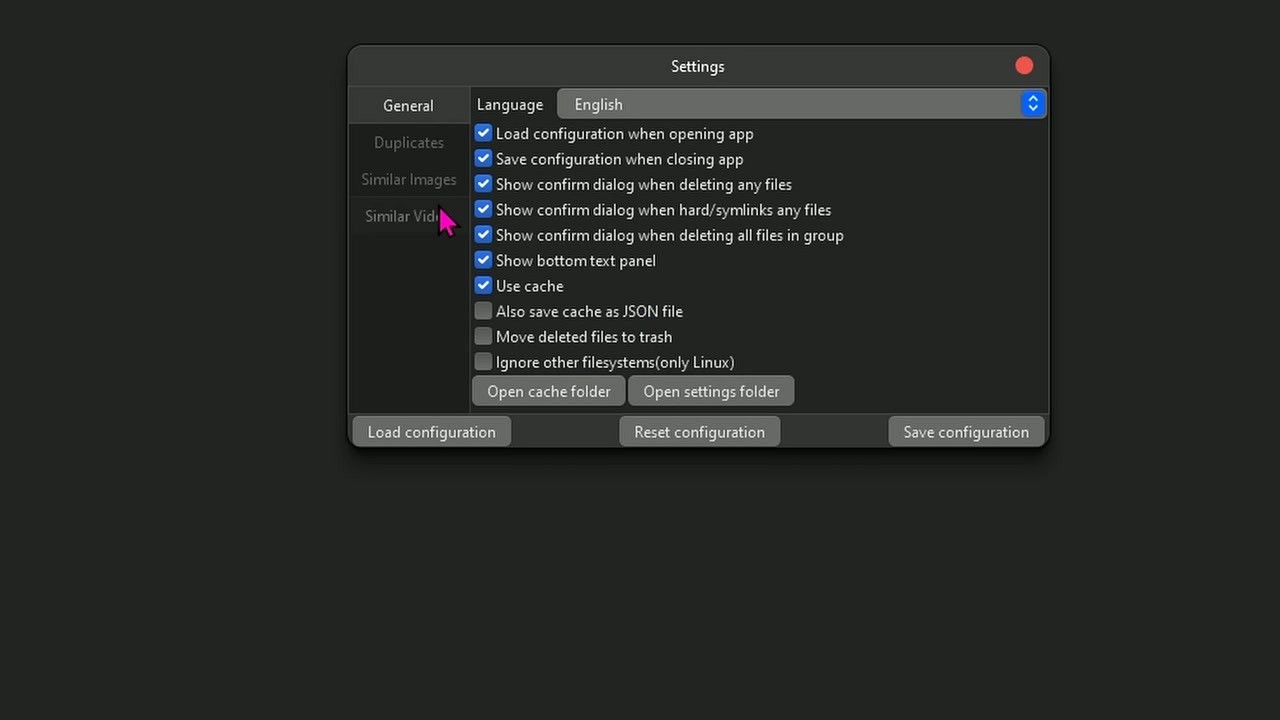
- Move deleted files to trash – Enable this. It is off by default, which means deletions are permanent. Turning it on sends files to your system Recycle Bin instead, giving you a safety net while you learn the tool.
- Use cache – Keep this enabled (on by default). Czkawka saves hash calculations between sessions, making repeat scans of the same directories much faster.
- Show confirm dialog when deleting – Leave this checked. It prevents accidental mass deletions with a confirmation popup.
- Language – Change from English to your preferred language using the dropdown at the top of the Settings panel.
- Save configuration when closing app – Keep enabled so your directory selections and preferences persist between sessions.
Click Save configuration to preserve your changes. The config file lives in ~/.config/czkawka on Linux and %APPDATA%czkawka on Windows.
Coming from dupeGuru or AllDup? Czkawka does not have a migration wizard, but the workflow is similar. Add your target folders, pick a scan mode, and run. The hash-based duplicate detection works the same way, just faster thanks to Rust and Blake3 hashing.
Time to put Czkawka to work. The most common use case is finding duplicate files, so let us walk through a real scan from start to finish.
Add directories to scan
- Make sure the Included Directories tab is active at the top of the window.
- Click the + Add button. A folder picker opens. Navigate to the folder you want to scan (for example, your Pictures folder or an external drive).
- The selected path appears in the directory list. Make sure the Recursive checkbox on the right is ticked – this tells Czkawka to scan all subfolders too.
- To exclude specific paths (like system folders or backups you want to keep), switch to the Excluded Directories tab and add those paths.
Choose a scan method
Select Duplicate Files from the left-side tabs (it is selected by default). Below the directory panel, you will see the Check method dropdown. Three options:
- Hash – Compares file contents byte-by-byte using Blake3 hashing. Slowest but most accurate. Recommended for your first scan.
- Size – Groups files by identical file size only. Very fast but produces many false positives.
- Name – Matches files with identical filenames regardless of content. Useful for finding renamed copies.
Leave it on Hash with Blake3 hash type for the best results.
Run the scan
Click the green Search button in the bottom-left corner. Czkawka will start scanning. On a typical 500 GB drive, a first-time hash scan takes 2-5 minutes depending on your drive speed. Subsequent scans of the same directory are much faster because of the cache.
The results area fills with groups of duplicate files. Each group shows the files that share identical content. The status bar at the bottom tells you how many duplicates were found and how much space they occupy. In the screenshot above, the scan found over 5,000 duplicates across 3,000+ groups totaling 40 GB of reclaimable space.
Review and act on results
Click on any file in the results list to highlight it. If you click a duplicate image, a preview panel appears on the right showing the image so you can visually verify which copy to keep.
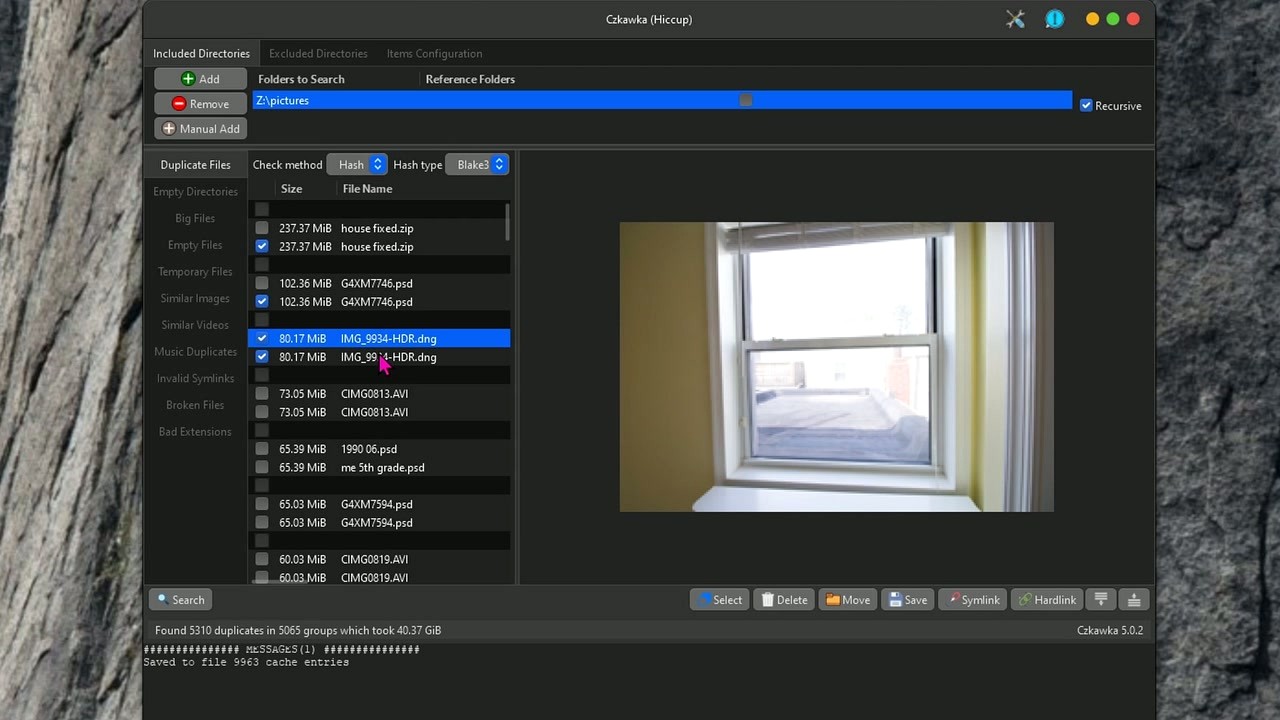
Use the action buttons at the bottom of the window to handle selected files:
- Select – Opens a dropdown with smart selection options (select all except oldest, newest, or by path).
- Delete – Removes the checked files (to trash if you enabled that setting).
- Move – Relocates duplicates to a folder of your choice instead of deleting them.
- Symlink / Hardlink – Replaces duplicates with filesystem links, reclaiming space while keeping file paths intact. Power-user option.
- Save – Exports the results list to a text file for review later.
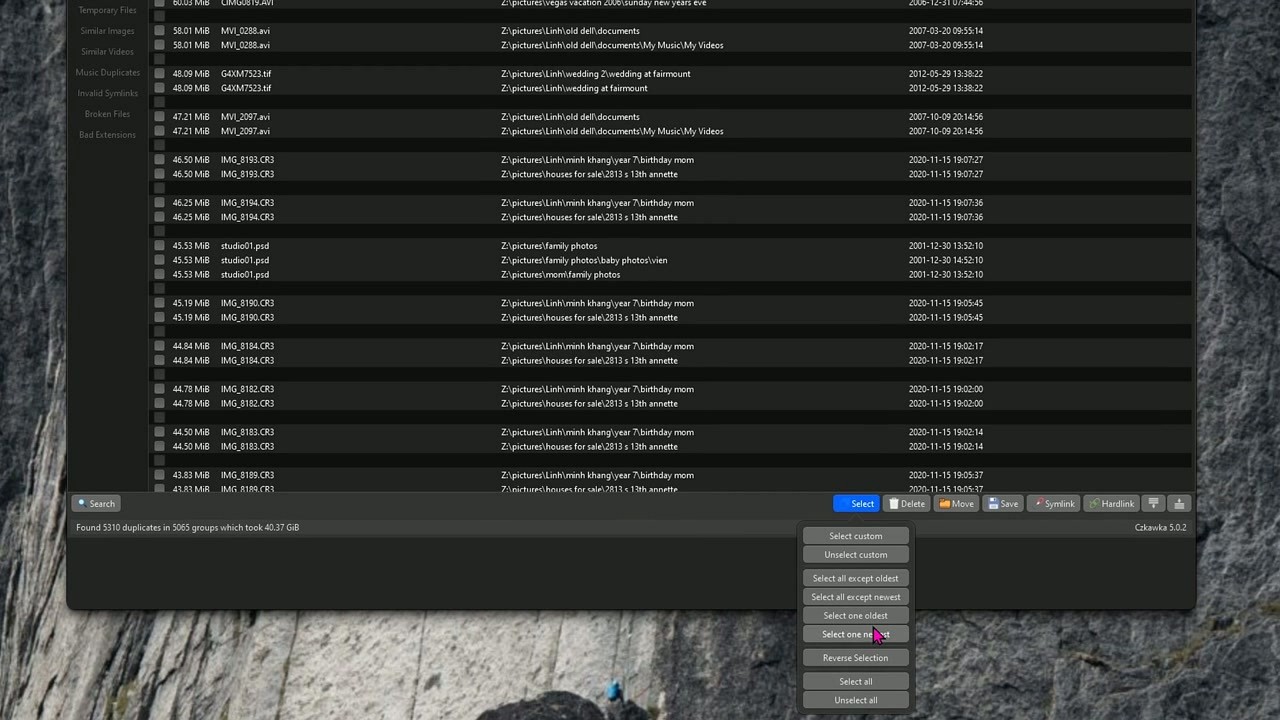
Be careful with system folders. Never scan C:Windows or /usr and delete files from there. Czkawka will find duplicates in system directories, but deleting them can break your operating system. Stick to personal folders like Documents, Pictures, Music, and Downloads.
Use Reference Folders to protect important directories
In the Included Directories panel, you can mark any folder as a Reference Folder using the checkbox column. Files inside reference folders are never selected for deletion – only their duplicates in other directories get flagged. This is perfect for protecting your primary photo library while cleaning duplicates from backup drives.
Try Similar Images for photo cleanup
Czkawka goes beyond exact duplicates. Switch to the Similar Images tab to find photos that look nearly identical but have different file sizes or resolutions. The tool uses perceptual hashing to compare visual content. You can adjust the similarity threshold in Items Configuration – a lower value finds closer matches, a higher value casts a wider net.
Speed up repeat scans
The cache stores file hashes between sessions. If you regularly scan the same directories, your second scan will finish in a fraction of the time since only new or modified files need rehashing. The cache is saved in ~/.cache/czkawka on Linux and %LOCALAPPDATA%czkawka on Windows.
Common mistakes to avoid
- Do not scan your entire C: drive without excluding system folders first. You will get thousands of false-positive results from Windows system files.
- Do not delete all duplicates in a group. Czkawka does not auto-protect one copy per group unless you use the “Select all except…” option. Always keep at least one copy.
- Avoid running multiple scans simultaneously through separate instances. Czkawka is already multi-threaded internally.
CLI for advanced users
The command-line version supports all the same scan modes. Run czkawka_cli –help to see available commands. A typical duplicate scan from the terminal:
This scans the Pictures folder using Blake3 hash comparison and outputs results to the terminal.
Where to get help
Czkawka is actively developed on GitHub. File bug reports and feature requests in the Issues tab. The project also has an active following on Reddit in r/DataHoarder, r/linux, and r/opensource where users share tips and workflows.
Ready to reclaim your disk space? Download Czkawka and start scanning.
Frequently Asked Questions
Answers to the most common questions about downloading, installing, and using Czkawka for duplicate file cleanup.
Is Czkawka safe to download and use?
Yes, Czkawka is safe. The entire source code is publicly available on GitHub under the MIT license, which means anyone can inspect it for malicious behavior. The project has over 20,000 GitHub stars and is actively maintained by developer qarmin, with contributions from dozens of community members who review every code change.
Czkawka does not include ads, telemetry, bundled toolbars, or any form of data collection. The Windows release binaries are compiled directly from the public source code through GitHub Actions CI/CD pipelines, so the build process itself is transparent. Some antivirus programs (particularly Windows Defender SmartScreen) may flag the executable because it lacks a paid code-signing certificate, but this is a false positive common with independent open-source software.
- Download only from the official GitHub releases page or from Flathub for Linux
- Verify the file hash against the checksums listed on the release page
- If SmartScreen blocks it, click “More info” then “Run anyway”
- Avoid third-party download sites like Softonic or CNET, which sometimes repackage installers with bundled adware
Pro tip: You can build Czkawka from source yourself using cargo build --release if you want complete verification of what you are running.
For download links to the official release, visit our download section.
Where is the official safe download for Czkawka?
The only official source for Czkawka is the GitHub repository at github.com/qarmin/czkawka. The developer has stated explicitly that there is no official website outside of GitHub. Any site claiming to be the “official Czkawka website” is unofficial.
On GitHub, every release includes pre-built binaries for Windows (GUI and CLI versions), and Linux users can install via Flatpak on Flathub or build from source. macOS users can install through Homebrew with brew install czkawka. The current version is 11.0.1, released February 21, 2026. The Windows GUI download (GTK version) is approximately 57 MB as a zip file.
- Go to the GitHub Releases page for the latest stable build
- Choose between Czkawka GUI (GTK4, ~57 MB) or Krokiet GUI (Slint-based, ~52 MB)
- For command-line users, download the CLI version (~50 MB)
- Linux users:
flatpak install flathub com.github.qarmin.czkawka
Pro tip: Bookmark the GitHub releases page directly. Third-party mirror sites like SourceForge sometimes host older versions that lack bug fixes and security patches from recent updates.
You can grab the latest version from our download section, which links directly to the official GitHub releases.
Is Czkawka free from malware and spyware?
Czkawka contains no malware, spyware, or adware. It is written in Rust, a memory-safe language, and the complete codebase is open for public review on GitHub. There are no hidden network calls, no telemetry endpoints, and no data collection of any kind.
The project has been reviewed by thousands of developers across communities like r/DataHoarder, r/linux, and r/opensource on Reddit. Users in these communities regularly recommend Czkawka specifically because of its clean, transparent codebase. The application runs entirely locally on your machine and never contacts external servers during operation. It reads your file system to find duplicates, but it does not upload file names, hashes, or any metadata anywhere.
- No internet connection required to run scans
- No user accounts or registration needed
- No background processes after you close the application
- MIT-licensed source code with full build transparency via GitHub Actions
Pro tip: If your antivirus quarantines Czkawka, add an exception for the executable rather than disabling your antivirus entirely. This is standard practice for unsigned open-source tools.
Check our features overview to see exactly what Czkawka does with your files.
Does Czkawka work on Windows 11?
Yes, Czkawka runs on Windows 10 and Windows 11 without any compatibility issues. Both the GTK4-based GUI and the newer Krokiet GUI work on 64-bit Windows systems. There is no 32-bit version available, but this should not matter since Windows 11 only runs on 64-bit hardware.
On Windows 11, you do not need to install any additional libraries or runtimes. The GTK4 libraries are bundled inside the zip download, so Czkawka is portable out of the box. Just extract the zip file to any folder and run the executable. Some users on Reddit have reported that Windows Defender SmartScreen shows a warning on first launch because the binary is not code-signed. This is not a security issue. Click “More info” and then “Run anyway” to proceed.
- Works on Windows 11 23H2 and 24H2 without issues
- No installer needed. Extract and run
- Both ARM64 and x86-64 Windows builds are available starting from version 10.0
- Minimum ~100 MB of free disk space for the application itself
Pro tip: Pin Czkawka to your taskbar or Start menu for quick access. Since it is a portable app, you can also keep it on a USB drive and run it on any Windows PC without installing.
See our system requirements section for full hardware and OS specs.
Does Czkawka work on macOS and Linux?
Czkawka supports macOS 10.15 Catalina and newer, plus most Linux distributions. It is a cross-platform application built in Rust, so it runs natively on all three major operating systems without emulation layers or compatibility shims.
On Linux, the easiest installation method is Flatpak via Flathub, which handles all GTK4 dependencies automatically. Ubuntu 20.04 and later, Fedora, Arch Linux, and most other distributions work fine. Czkawka is also available in the Debian 13 repositories. For macOS, install through Homebrew: brew install czkawka. The macOS version requires 10.15 Catalina or later and works on both Intel and Apple Silicon Macs.
- Linux (Flatpak):
flatpak install flathub com.github.qarmin.czkawka - Linux (Debian 13+):
apt install czkawka - macOS:
brew install czkawka - FreeBSD is also supported via ports
Pro tip: On Linux, if you need the latest version and your distro packages an older one, use the Flatpak build. Flatpak releases typically match the GitHub release within a day or two.
Head to our download section for platform-specific links.
What are the minimum system requirements for Czkawka?
Czkawka has low system requirements. It runs on any modern processor with 512 MB of RAM minimum, though 2 GB or more is recommended when scanning large file collections with tens of thousands of files. The application itself uses around 100 MB of disk space.
Because Czkawka is written in Rust, it handles memory efficiently compared to Python-based alternatives like dupeGuru. Scanning speed depends mostly on your storage device. An NVMe SSD will complete a full hash scan of 100,000 files in under a minute, while a traditional hard drive will take several minutes for the same workload. Czkawka uses multithreading, so a multi-core processor does help with hashing performance. The similar image finder uses more RAM than the basic duplicate finder because it loads image thumbnails for perceptual hash comparison.
- OS: Windows 10+, macOS 10.15+, or Linux with GTK4
- RAM: 512 MB minimum, 2 GB+ recommended for large scans
- Disk: ~100 MB for the application
- CPU: Any 64-bit processor (multi-core recommended)
- Optional: FFmpeg for video similarity scanning
Pro tip: If you are scanning a NAS or network drive, expect significantly slower performance due to network latency. Run Czkawka on a local copy when possible, or use the CLI version over SSH for remote scanning.
Full details are in our system requirements section.
Is Czkawka completely free to download and use?
Czkawka is 100% free with no paid tiers, no premium version, and no feature gating. Every function – duplicate finding, similar image detection, empty folder cleanup, broken file scanning – is available at no cost. This applies to both personal and commercial use.
The GTK4 GUI and the CLI are licensed under the MIT License, one of the most permissive open-source licenses. The newer Krokiet frontend uses the GPL-3.0 license. Neither license restricts how you use the software. There are no in-app purchases, no subscription fees, and no “trial period” limitations. The developer (qarmin) maintains Czkawka as a community project and accepts donations through GitHub Sponsors, but donations are optional and do not unlock extra functionality.
- No cost for any feature, ever
- MIT License (GTK GUI + CLI) allows use in commercial environments
- GPL-3.0 (Krokiet GUI) is free but requires sharing modifications
- No registration, no account creation, no email required
Pro tip: Unlike commercial alternatives such as Duplicate Cleaner (which costs $30+ for the Pro version), Czkawka provides all scanning modes for free. If you find it useful, consider sponsoring the developer on GitHub.
Learn about all included features at no cost in our features section.
What is the difference between the Czkawka GTK GUI and Krokiet?
Czkawka ships with two separate GUI frontends that use the same scanning engine underneath. The GTK GUI is the original, mature interface built with GTK4. Krokiet is a newer frontend built with the Slint UI framework, offering a more modern look and runtime dark/light theme switching.
Both frontends have the same core scanning capabilities, including duplicate files, similar images, empty folders, broken files, and all other scan modes. The main differences are cosmetic and technical. The GTK version requires GTK4 libraries (bundled on Windows, system-provided on Linux). Krokiet uses Skia or OpenGL for rendering, making it independent of GTK. On Windows, the GTK GUI download is about 57 MB, while Krokiet is around 52 MB. Krokiet is under more active development as of version 11.0.1, and the developer has mentioned shifting focus toward Krokiet for future updates.
- GTK GUI: Mature, stable, familiar file-manager-style layout
- Krokiet: Newer, built-in dark/light mode toggle, smaller download
- Both share the same Rust scanning backend
- Krokiet is licensed under GPL-3.0; GTK GUI under MIT
Pro tip: If you are on Linux and already have GTK4 installed, the GTK version will integrate better with your desktop theme. On Windows, Krokiet may feel snappier since it does not depend on GTK libraries.
Download either version from our download section.
How do I download and install Czkawka on Windows?
Czkawka on Windows does not have a traditional installer. It is a portable application. You download a zip file, extract it, and run the executable directly. No installation wizard, no registry changes, no admin permissions required.
The process takes about two minutes. The current Windows GTK GUI download is a 57 MB zip file. You can place the extracted folder anywhere you like – your Desktop, Documents, or a dedicated “Tools” folder. Czkawka stores its cache files (used to speed up repeated scans) in your user profile directory, so the program folder stays clean.
- Go to the download section and click the Windows GUI download link
- Save the zip file (windows_czkawka_gui_gtk_412.zip, ~57 MB)
- Right-click the zip and select “Extract All” to a folder of your choice
- Open the extracted folder and double-click
czkawka_gui.exe - If Windows SmartScreen appears, click “More info” then “Run anyway”
Pro tip: Create a shortcut to czkawka_gui.exe on your desktop or pin it to your taskbar. Since the app is portable, you can also put it on a USB drive to use on multiple PCs.
For a full walkthrough with screenshots, see our Getting Started guide.
How to install Czkawka on Linux using Flatpak?
The fastest way to install Czkawka on Linux is through Flatpak. One command handles all dependencies, including GTK4 libraries, and keeps the app sandboxed from your system. Most Linux distributions ship with Flatpak support or can add it with a single package install.
Czkawka is available on Flathub, the largest Flatpak repository. The Flathub version typically updates within a day of each GitHub release. If your distribution uses Debian 13 (Trixie) or later, Czkawka is also in the official Debian repositories. Arch Linux users can find it in the AUR. For other distributions, building from source with Cargo (Rust’s package manager) is straightforward if you have a Rust toolchain installed.
- Ensure Flatpak is installed:
sudo apt install flatpak(Debian/Ubuntu) or check your distro docs - Add Flathub if not already added:
flatpak remote-add --if-not-exists flathub https://flathub.org/repo/flathub.flatpakrepo - Install Czkawka:
flatpak install flathub com.github.qarmin.czkawka - Launch from your app menu or run:
flatpak run com.github.qarmin.czkawka
Pro tip: Flatpak sandboxing may restrict file access. If Czkawka cannot see certain directories, use Flatseal to grant additional filesystem permissions, or run the app with --filesystem=host.
More installation options are listed in our download section.
How to fix Czkawka not opening or crashing on Windows?
If Czkawka fails to open on Windows, the most common cause is a missing Visual C++ Redistributable or an antivirus blocking the executable. On Reddit, several users in r/Windows10TechSupport have reported that Trend Micro and similar security suites quarantine the Czkawka binary without notification.
The GTK version specifically can crash on Windows if the GTK4 DLLs are not in the same directory as the executable. Make sure you extracted the entire zip file contents, not just the .exe. The Krokiet version has fewer dependency issues since it bundles its own rendering engine. If the app opens but crashes mid-scan, you may be running out of RAM when scanning very large directories with the similar image finder, which loads thumbnails into memory.
- Check your antivirus quarantine list and whitelist
czkawka_gui.exe - Make sure all files from the zip are extracted together, not just the .exe
- Install the latest Visual C++ Redistributable from Microsoft
- Try the Krokiet GUI instead, which has fewer dependencies
- For crash-on-scan issues, reduce the scan scope or increase your page file size
Pro tip: Run Czkawka from the command line (czkawka_gui.exe in CMD or PowerShell) to see error messages that the GUI might not display. This often reveals the exact cause of startup failures.
Our Getting Started guide covers the full setup process including common pitfalls.
Why is Czkawka not finding all duplicate files?
Czkawka finds duplicates based on the method you select, and each method has different detection criteria. The “Hash” method (default) finds byte-for-byte identical files. If two files look the same but differ by even one byte, the hash method will not flag them as duplicates.
This is a frequent question on r/DataHoarder and in GitHub issues. Users expect Czkawka to find visually similar photos using the duplicate file mode, but that mode compares file hashes, not visual content. For photos that look alike but have different metadata, file sizes, or compression levels, you need the “Similar Images” scan mode instead, which uses perceptual hashing. Another common reason for missed duplicates: the excluded directories list. By default, Czkawka skips system directories and hidden folders. If your duplicates are in a dot-directory (like .backup), they may be excluded from the scan.
- Use “Hash” mode for exact byte-for-byte duplicates
- Use “Similar Images” mode for photos that look the same but differ in resolution, metadata, or compression
- Check the “Excluded Directories” tab and remove any paths that contain files you want to scan
- Make sure you have added the correct “Included Directories” – Czkawka only scans paths you specify
- Set the minimum file size threshold to 0 bytes if you want to catch small duplicates
Pro tip: For the similar images scanner, lower the similarity threshold from the default to catch more near-duplicates. A threshold of 5-10 works well for finding resized or recompressed copies of the same photo.
Read about all scan modes in our features section.
Czkawka deleted system files and things stopped working. What happened?
Czkawka does exactly what you tell it to – it deletes the files you select. If you selected system files, library files, or application dependencies for deletion, those programs will break. This is user error, not a bug, and it is one of the most common mistakes new users make.
A widely discussed post on r/pop_os described a user who ran Czkawka, deleted “all duplicate files,” and then found that games would not launch, audio stopped working, and loading times increased. The problem: Linux systems have many legitimate duplicate files (shared libraries, cached assets, symlinked resources) that are supposed to exist in multiple locations. Deleting them breaks the programs that depend on them.
- Never scan your entire root filesystem (C: on Windows, / on Linux) without excluding system directories
- Always add exclusions for
/usr,/lib,/bin,/etcon Linux, andC:Windows,C:Program Fileson Windows - Review files before deleting – do not blindly “select all and delete”
- Use the “Move” option instead of “Delete” so you can recover files if something breaks
- If damage is done, restore from a backup or, on Linux, reinstall affected packages with
apt install --reinstall
Pro tip: Stick to scanning your personal folders (Documents, Pictures, Downloads, Music) and external drives. Leave system directories alone unless you know exactly what each file does.
Our Getting Started guide explains how to configure scan paths safely.
How do I update Czkawka to the latest version?
Czkawka does not have a built-in auto-updater. To update, download the latest release from GitHub and replace your existing files. On Linux with Flatpak, run flatpak update and the Flathub repository handles it automatically.
The current version is 11.0.1, released on February 21, 2026. Updates have been coming roughly every 3-6 months, with major versions (9.0, 10.0, 11.0) adding new scan modes and performance improvements. One thing to keep in mind: cache files from older versions may not be compatible with newer versions. If Czkawka crashes after an update, delete the cache folder and let it rebuild on the next scan. The cache is stored in your user profile directory (typically %APPDATA%/czkawka on Windows or ~/.cache/czkawka on Linux).
- Windows: Download the new zip from GitHub Releases, extract it, and replace your old folder
- Linux (Flatpak):
flatpak update com.github.qarmin.czkawka - Linux (Debian):
sudo apt update && sudo apt upgrade czkawka - macOS:
brew upgrade czkawka
Pro tip: Star the GitHub repository and enable notifications to get alerted when new versions drop. Major releases often include speed improvements worth updating for – version 9.0 brought a 2x scan speed increase on large directories.
Grab the latest build from our download section.
What is new in the latest version of Czkawka?
Czkawka 11.0.1, released February 21, 2026, is a maintenance update that fixes bugs from the 11.0.0 release. The 11.x series introduced improvements to scan caching, better handling of large directories, and refined UI responsiveness in the Krokiet frontend.
The 10.0 release (August 2025) was a bigger update. It added ARM Linux builds, removed AppImage support in favor of Flatpak, and landed in the official Debian 13 repositories. Performance-wise, the duplicate finder got faster hashing through improved parallelism, and the similar image scanner received accuracy improvements for detecting rotated or cropped copies. The Krokiet GUI also gained feature parity with the GTK version around this time.
- Version 11.0.1: Bug fixes, stability improvements
- Version 10.0: ARM Linux, Debian 13 support, no more AppImage
- Version 9.0: Major speed boost (2x faster scans), improved caching
- Version 8.0: New Krokiet GUI frontend, GTK4 migration completed
Pro tip: Check the GitHub Releases page for full changelogs. Each release includes detailed notes on what changed, what was fixed, and any breaking changes you should know about before upgrading.
Download the newest version from our download section.
Czkawka vs dupeGuru – which duplicate finder is better?
Czkawka is faster and has more scan modes. dupeGuru has a longer track record and a slightly simpler interface for basic duplicate finding. For most users, Czkawka is the better pick in 2026.
The speed difference comes down to language: Czkawka is built in Rust with multi-threaded hashing, while dupeGuru is Python-based. In community benchmarks on r/DataHoarder, Czkawka consistently finishes full-disk scans 3-5x faster than dupeGuru on the same hardware. Czkawka also handles more file types – it can scan for similar videos, broken files, bad file extensions, empty directories, and similar music files. dupeGuru is limited to duplicate files and similar images/music. On the flip side, dupeGuru is available in the package managers of more Linux distributions, and some users find its results display easier to read.
- Speed: Czkawka wins by a wide margin due to Rust and multi-threading
- Features: Czkawka has 10 scan modes vs dupeGuru’s 3
- Cross-platform: Both support Windows, macOS, and Linux
- UI: dupeGuru has a simpler layout; Czkawka offers two GUI options (GTK and Krokiet)
- Active development: Czkawka receives regular updates; dupeGuru’s development has slowed
Pro tip: If you have been using dupeGuru and want to switch, there is no migration path for saved results. Run a fresh scan with Czkawka. The speed improvement alone makes the switch worthwhile.
See how Czkawka compares in our features overview.
How does Czkawka compare to AllDup and Duplicate Cleaner?
Czkawka, AllDup, and Duplicate Cleaner target the same problem but differ in platform support, pricing, and feature scope. Czkawka is free and cross-platform. AllDup is free but Windows-only. Duplicate Cleaner has a free trial but charges $30+ for the Pro version.
AllDup has been around longer and has a very detailed filtering system that power users appreciate, but it is Windows-exclusive and its interface feels dated. Duplicate Cleaner Pro has the most polished UI of the three and adds features like duplicate photo management and music tag comparison, but the useful features sit behind the paywall. Czkawka splits the difference: free with a broad feature set across all platforms, though its interface is more utilitarian than Duplicate Cleaner’s.
- Czkawka: Free, open-source, Windows/macOS/Linux, 10 scan modes, Rust-fast
- AllDup: Free, Windows-only, strong filtering, older-looking UI
- Duplicate Cleaner: Free trial, $30+ Pro, Windows-only, polished interface
- For Linux or macOS users, Czkawka is the only viable option among the three
Pro tip: If you only need basic duplicate finding on Windows and want the most beginner-friendly experience, AllDup is fine. For anything beyond basic duplicate files, or if you want cross-platform support, Czkawka covers more ground without costing anything.
Try Czkawka by grabbing it from our download section.
Can I use Czkawka from the command line?
Yes. Czkawka has a dedicated CLI binary (czkawka_cli) that supports all the same scan modes as the GUI. The CLI version is around 50 MB on Windows and works on Windows, Linux, and macOS. It is ideal for scripting, automation, server environments, and SSH-based remote scanning where a GUI is not available.
The CLI accepts arguments for scan type, directories to include/exclude, minimum file size, output format, and more. You can export results to a text file for further processing with other tools. On Linux servers, this is the recommended way to run Czkawka since you can schedule scans via cron jobs and pipe results to cleanup scripts.
- Download
czkawka_clifrom the GitHub Releases page - Basic duplicate scan:
czkawka_cli dup -d /path/to/scan -e /path/to/exclude - Find empty directories:
czkawka_cli empty-dirs -d /path/to/scan - Find similar images:
czkawka_cli image -d /path/to/photos - Export results: Add
-f results.txtto save output to a file
Pro tip: Combine the CLI with find and xargs on Linux for advanced workflows. For example, you can pipe Czkawka’s output into a script that moves duplicates to a specific archive directory rather than deleting them permanently.
Learn more about all scan modes in our features section.
How do I find and remove duplicate photos with Czkawka?
Czkawka has two modes for finding duplicate photos: the standard “Duplicates” mode for byte-identical files, and the “Similar Images” mode for photos that look alike but differ in resolution, compression, or metadata. For cleaning up a photo library, the similar images mode is usually what you want.
The similar images scanner uses perceptual hashing, which means it compares what the image looks like rather than its raw bytes. This catches duplicates created by re-saving, resizing, screenshot-copying, or transferring between devices where metadata changes. You can adjust the similarity threshold – lower numbers mean stricter matching (fewer false positives), higher numbers find more matches but may flag unrelated images. A threshold between 5 and 10 works well for most photo libraries.
- Open Czkawka and select the “Similar Images” tab at the top
- Add your photo directories under “Included Directories”
- Set the similarity threshold (start with the default, then adjust)
- Click “Search” and wait for the scan to complete
- Review results, which show image previews side by side
- Use “Select all except biggest” to keep the highest-quality version of each duplicate group
Pro tip: Before mass-deleting, use the “Move” option to send duplicates to a temporary folder. Review that folder after a week. If nothing is missing from your library, delete the moved files permanently.
See the full walkthrough in our Getting Started guide.
Still have questions? Check the Czkawka GitHub Discussions or visit our Getting Started guide.